How to Set Up Notifications on LetsBuildUp.org
|
Getting your Trinity Audio player ready...
|
Staying updated is essential when you’re part of a growing online community. LetsBuildUp.org makes it easy to stay informed through smart and customizable notification settings. Whether you want to track comments on your posts, get updates from your favorite creators, or receive system alerts — the platform ensures you never miss important updates.
In this guide, we’ll explain step-by-step how to set up, customize, and manage your notifications effectively.
Why Notifications Matter
Notifications help you:
- 📬 Stay Connected: Get updates on new comments, messages, and replies instantly.
- 🧠 Stay Informed: Be aware of new blogs, discussions, or events on LetsBuildUp.org.
- 🕒 Save Time: You don’t need to manually check updates — the platform alerts you automatically.
- 🌍 Engage More: React faster to feedback, collaborations, or invitations.
Types of Notifications on LetsBuildUp.org
LetsBuildUp.org provides different notification types to suit your needs:
| Notification Type | Description |
| Post Notifications | Alerts when someone comments or likes your blog. |
| Message Notifications | Updates for new private or group messages. |
| Follower Notifications | When someone new follows your profile. |
| Event Notifications | Alerts for upcoming webinars, workshops, or meetings. |
| System Updates | Platform-related alerts or feature updates. |
Step-by-Step: How to Set Up Notifications
Step 1: Log In to Your Account
Go to LetsBuildUp.org and log in using your registered email and password.
Step 2: Go to Your Profile Settings
Click on your profile icon (top right corner) and choose “Settings” from the dropdown menu.
Step 3: Select “Notifications” Tab
Once you’re in the settings panel, click the Notifications tab from the sidebar. This section allows you to manage what kind of alerts you receive.
Step 4: Choose Notification Preferences
You’ll see different categories like:
- Comments and Likes
- Messages
- System Alerts
- Blog Updates
- Follower Activity
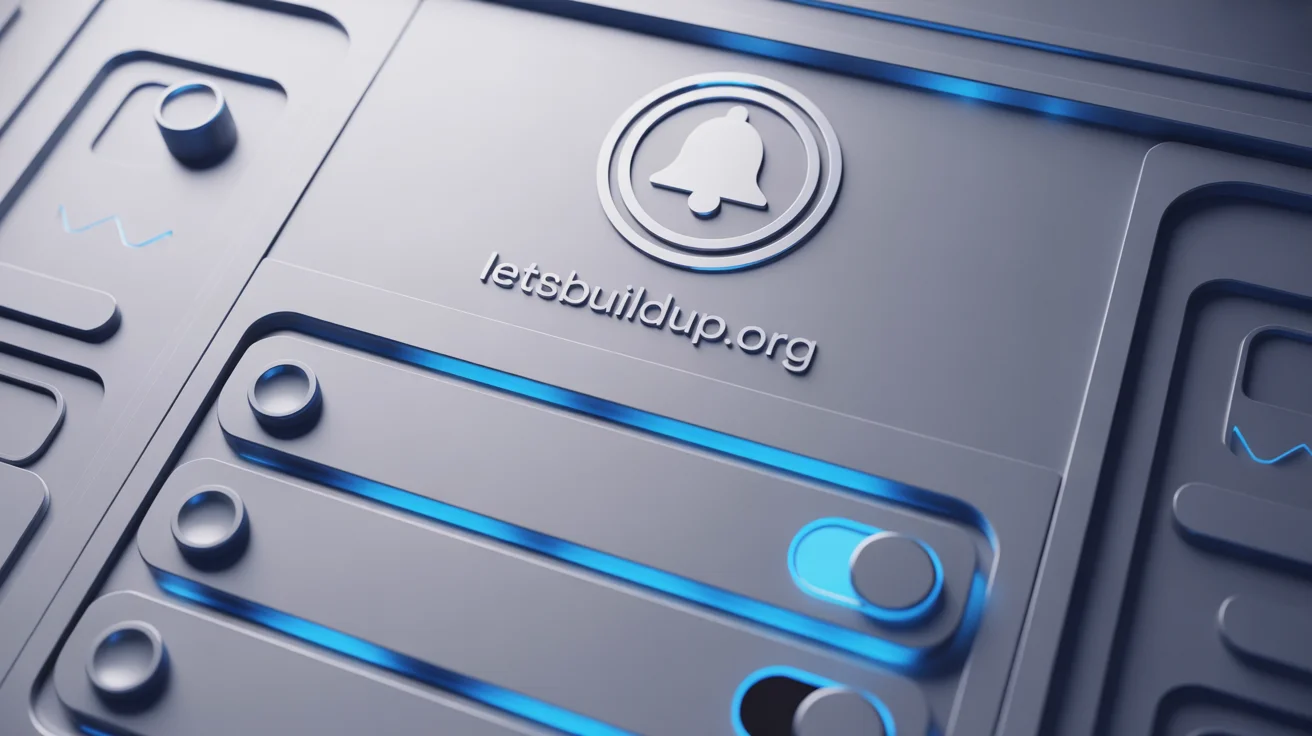
Toggle the options ON or OFF based on your preference.
Step 5: Choose Delivery Method
LetsBuildUp.org lets you select how you want to receive notifications:
| Method | Description |
| Email Notifications | Receive updates directly in your inbox. |
| Push Notifications | Get real-time alerts in your browser or mobile app. |
| In-App Notifications | View alerts directly on your dashboard. |
✅ Pro Tip: Enable push notifications for instant updates when you’re online.
Step 6: Save Changes
Once you’ve adjusted your preferences, click the Save Changes button at the bottom of the page.
Your new settings will take effect immediately.
Managing Your Notification Inbox
To view all your alerts in one place:
- Click on the bell icon 🔔 on the top right corner of your screen.
- You’ll see all your recent notifications — new followers, comments, mentions, or updates.
- Click on any notification to open the related post or message directly.
You can also mark all as read or delete old notifications to keep your inbox clean.
Customizing Frequency
If you receive too many updates, you can adjust how often you get them:
- Instant: Receive alerts as they happen.
- Daily Summary: Get one compiled notification per day.
- Weekly Summary: Perfect for busy professionals.
This way, you control how connected you want to stay.
How to Turn Off Notifications
If you need a break, you can easily pause alerts:
- Go to your Notification Settings.
- Toggle off the types you don’t want.
- Or use “Do Not Disturb” mode to silence all notifications temporarily.
Troubleshooting Common Notification Issues
| Issue | Solution |
| Not receiving email alerts | Check your spam folder or confirm your email address. |
| Push notifications not working | Ensure browser permissions are allowed. |
| Notifications delayed | Try logging out and back in or refreshing the dashboard. |
| Duplicate alerts | Reset your settings and re-enable only selected options. |
Benefits of Personalized Notifications
- 🕓 Time-Saving: Focus only on what’s important.
- 💬 Better Engagement: Quickly respond to comments or messages.
- 🧭 Increased Awareness: Stay informed about community news and new features.
- 💡 Smarter Workflow: Manage alerts based on your working schedule.
Comparison: Default vs Custom Notifications
| Feature | Default Setting | Custom Setting |
| Alert Frequency | Every update | User-defined |
| Email Alerts | Enabled | Optional |
| Push Alerts | Disabled | Optional |
| Focus Control | Limited | Fully customizable |
FAQ Section
Q1: Can I receive notifications on my mobile phone?
Yes, if you use the LetsBuildUp.org app or enable mobile browser notifications.
Q2: How do I stop receiving too many emails?
Go to settings → Notifications → Turn off “Email Notifications” or switch to weekly summaries.
Q3: Are notification settings saved automatically?
Yes, changes are saved once you click “Save Preferences.”
Q4: Can I get notifications for specific authors?
Yes, you can follow authors and receive alerts when they post new content.
Q5: Will I miss updates if I turn off notifications?
You won’t receive alerts, but you can always view updates in your dashboard manually.
Conclusion
Setting up notifications on LetsBuildUp.org helps you stay connected, productive, and informed — without being overwhelmed. With flexible settings, you can customize alerts for what truly matters, whether it’s comments on your blogs or community announcements.
Take a few minutes to adjust your notification preferences today and make your LetsBuildUp.org experience smoother and more organized.